Paint to remove

Drop an image here

Choose an image, drag it here, or paste with Ctrl+V / ⌘V

JPG, PNG, WebP & AVIF
40 px

Remove a distracting object, person, or small blemish from a photo. Paint over the unwanted area and let AI reconstruct the background.

  1. Images stay on your device
  2. PNG downloads at original dimensions
  3. No account or API key needed

How to remove an object from a photo

  1. Choose, paste, or drop a PNG, JPG, WebP, or AVIF image.
  2. Adjust the brush size below the preview. Paint over the whole object, including its shadow. Undo removes the last brush stroke; Clear selection clears the mask.
  3. Select Remove object. The first removal downloads the AI model; later removals reuse it. Cancel stops processing and keeps your selection.
  4. Check the result or use Show original to compare. Continue removing other objects or download your PNG. With no selection, Undo restores up to three recent edits; Reset image returns to the original.

Clean up small distractions in a photo

Paint a complete, focused selection

Cover the unwanted object and its shadow, leaving the rest of the photo unselected. Smaller edits against a simple wall, sky or repeating texture are generally easier to reconstruct than large areas across faces, text or detailed patterns.

Check the reconstructed area

The AI generates a plausible replacement from the surrounding image; it cannot recover hidden details from the original scene. Inspect the result, undo an unsuccessful edit and try a revised selection. Keep your original when the photo needs to serve as an accurate record.
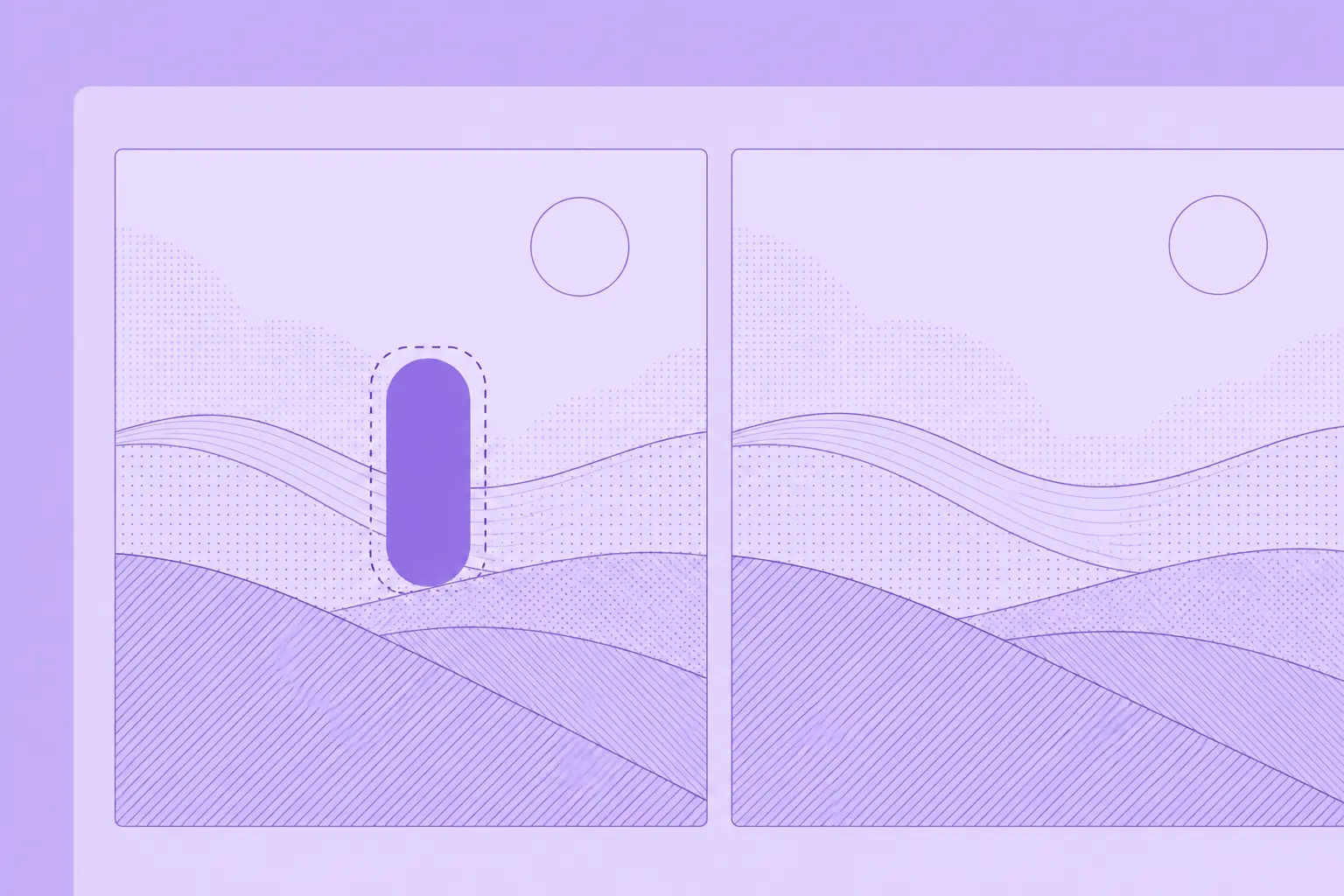
Purple before and after illustration: a selected object interrupts landscape lines on the left; on the right, the object is removed and the lines continue smoothly.

Object removal questions