Source image

Drop your screenshot or image

Choose an image, drag it here, or paste with Ctrl+V / ⌘V

PNG, JPG, WebP

Extracted text

Your extracted text appears here

Extract text from an image or screenshot without sending the image to an OCR service. Edit the recognized text before copying or downloading it.

  1. Images stay on your device
  2. No account or API key needed

How to extract text from a screenshot

  1. Choose an image, drop a screenshot into the original pane, or paste an image from your clipboard.
  2. Recognition starts automatically using the selected language. Change the language and choose Extract text to recognize the image again. First use downloads the OCR engine and language data.
  3. Review and edit the extracted text, especially names, numbers, and punctuation.
  4. Copy the text or download a TXT file.

Turn image text into editable text

Start with clear text

Sharp screenshots and straight, high-contrast printed text usually work better than blurry photos, handwriting, decorative fonts, or text over a complex background.

Crop irrelevant areas first

Use the image cropper to isolate the text you need before recognition. OCR output is editable plain text; it does not reconstruct the original document layout or create an Excel table.
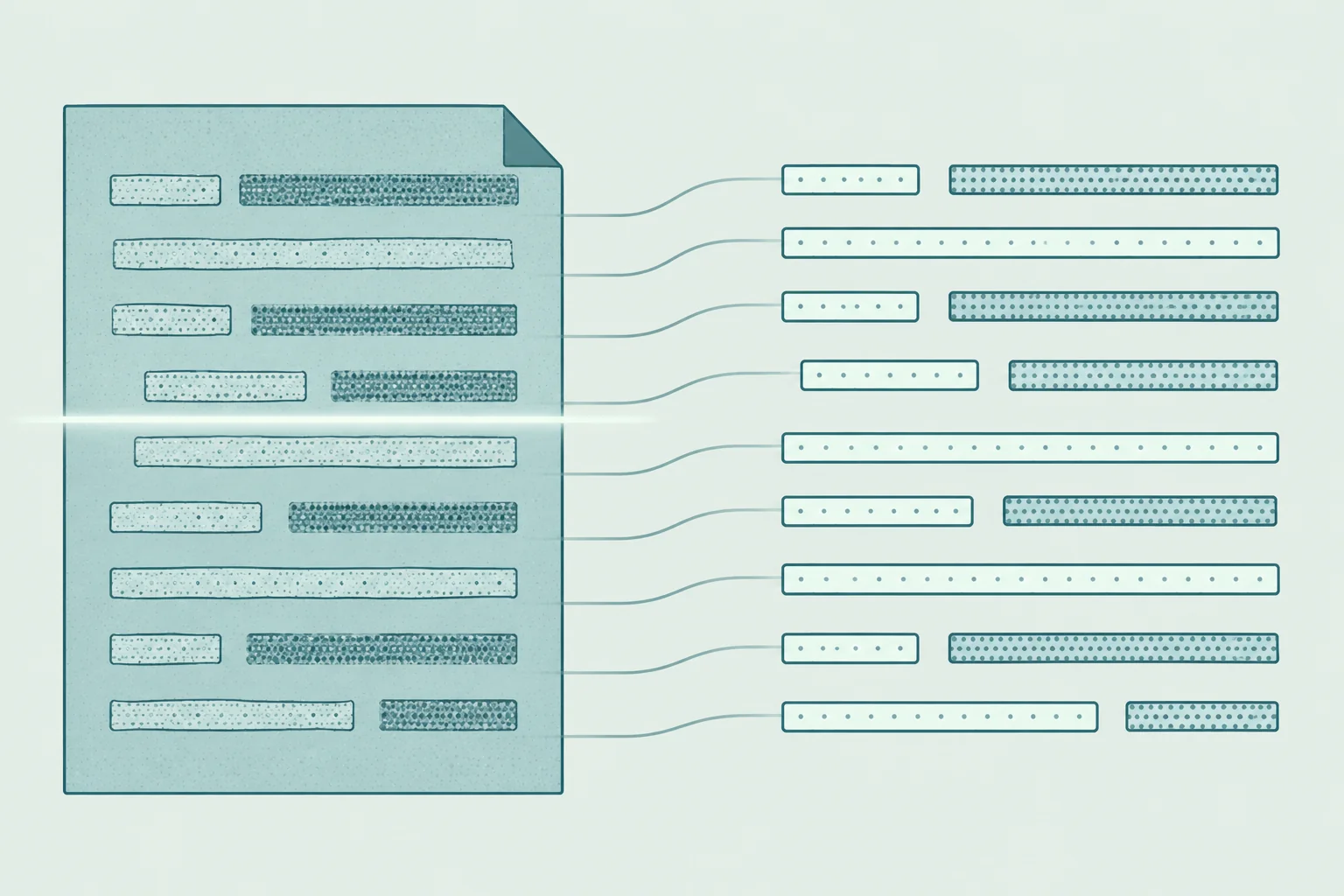
Editorial illustration of textured rows in a document becoming clean separated lines through text extraction.

Frequently asked questions