Image to Text
Extract editable text from screenshots and images locally, then copy or download it.
Drop a PDF with selectable text.
Choose a PDF to extract and edit its Markdown.
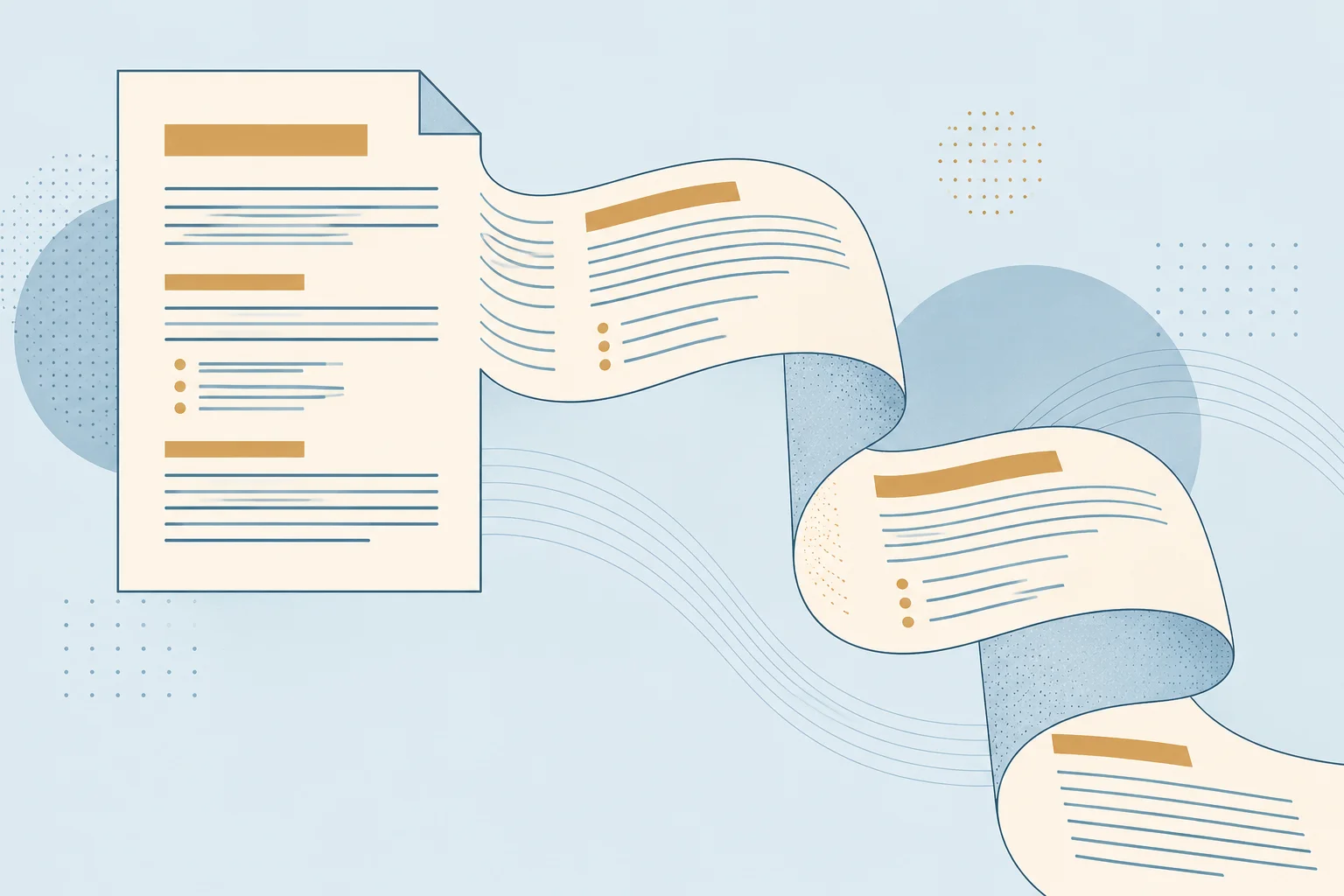
Convert a PDF with selectable text into an editable Markdown document. Review each page beside the original, correct the extracted text and save an .md file for your notes, documentation or AI assistant.
This converter estimates headings and paragraphs from text size and position, and turns recognizable list markers into Markdown lists. Review the result against the original, especially where spacing or reading order changes.
This option starts off. Enable it to remove matching lines near page edges, including repeated page numbers. It compares the selected pages, so a short range may leave some recurring text in place. Check the result for anything you wanted to keep.
Source-page references start on and add the original PDF page number as a comment in the Markdown source. Comments are usually hidden when Markdown is rendered. You can switch references on or off before exporting without converting again.
Columns, tables and equations need extra review. Tables are extracted as text, and images, link destinations, annotations and formula formatting are not recreated. Rebuild these parts manually when they matter to your document.
Bring lecture notes, reading material or text-based reports into a Markdown editor such as Obsidian. Select the pages you need and correct their structure before adding your own notes.
Extract a section from a PDF manual as a starting point for a README, knowledge base or internal guide. Review lists and headings, then add any images or links your new document needs.
Copy a reviewed passage or attach the .md file to an assistant that accepts Markdown. Keep source-page references for checking the original, and include missing tables or figures when they affect the meaning.
Choose one PDF up to 25 MB and 200 pages. The selected pages can contain up to 2 million extracted characters. Large or complex files may need a smaller document or page range to process within your browser’s memory.
This converter needs an existing text layer; it does not run OCR. Scanned pages without selectable text are flagged for review and can be filled in manually. For a screenshot or individual page image, use Image to Text for OCR. Password-protected PDFs need an unlocked copy.
Your PDF is processed in your browser without being sent to a conversion server. The website loads the assets needed to read and preview PDFs. Download or copy your work before leaving: the page does not save your edits for a later visit.